|
|
Please login with your username and your password. Select the module ‘Compression spring’ through the tree structure of the project manager by double-clicking on the module or clicking on the button ‘New calculation’.
A cold coiled compression spring 4 x 32 x 120 is made of patented cold drawn spring steel wire
Wire diameter  | = 4 mm |
Diameter  | = 32 mm |
Coils  | = 8.5 |
Length of the unloaded spring  | = 120 mm |
| is alternately loaded with |
Spring force  | = 300 N |
Spring force  | = 500 N |
We are looking for the spring rate  , the corrected shear stress
  for the spring force
  = 500 N and
spring deviation
= 500 N and
spring deviation  .
.
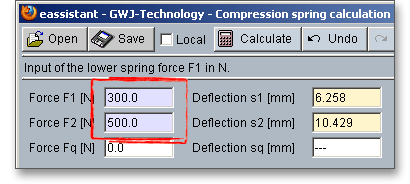
Please start to enter the spring forces  and
and  . During entering the spring forces, the corresponding
spring deflections are automatically determined and will be highlighted in a different color.
. During entering the spring forces, the corresponding
spring deflections are automatically determined and will be highlighted in a different color.
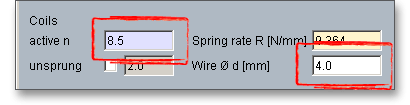
Enter the number of coils  as well as the wire diameter
  . The settings for the spring ends, the support of
spring as well the load will not be changed.
. The settings for the spring ends, the support of
spring as well the load will not be changed.
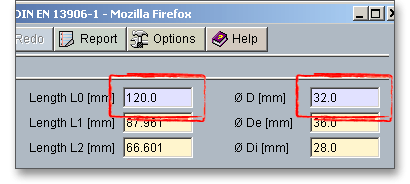
Enter the spring length  and the spring diameter
  .
.
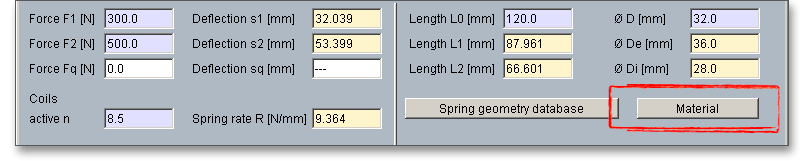
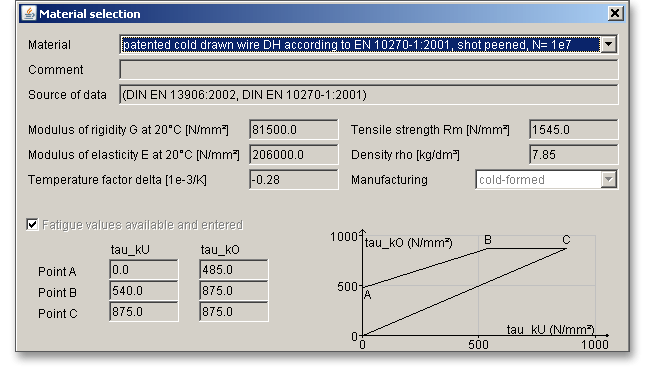
Click the button ‘Material’ to open the material database and to find the required material for the compression spring.
Select the following material from the listbox: patented cold drawn wire DH according to EN 10270-1: 2001, shot
peened,  .
.
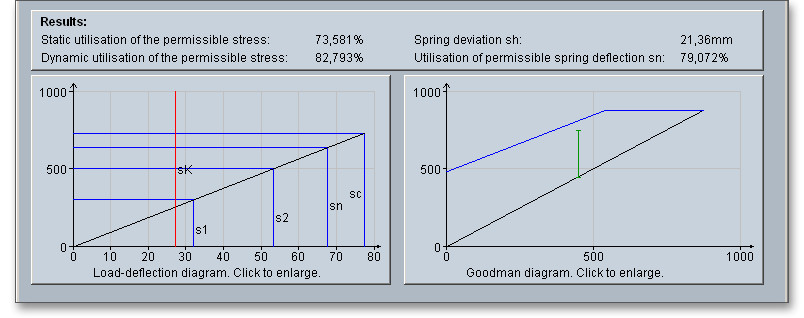
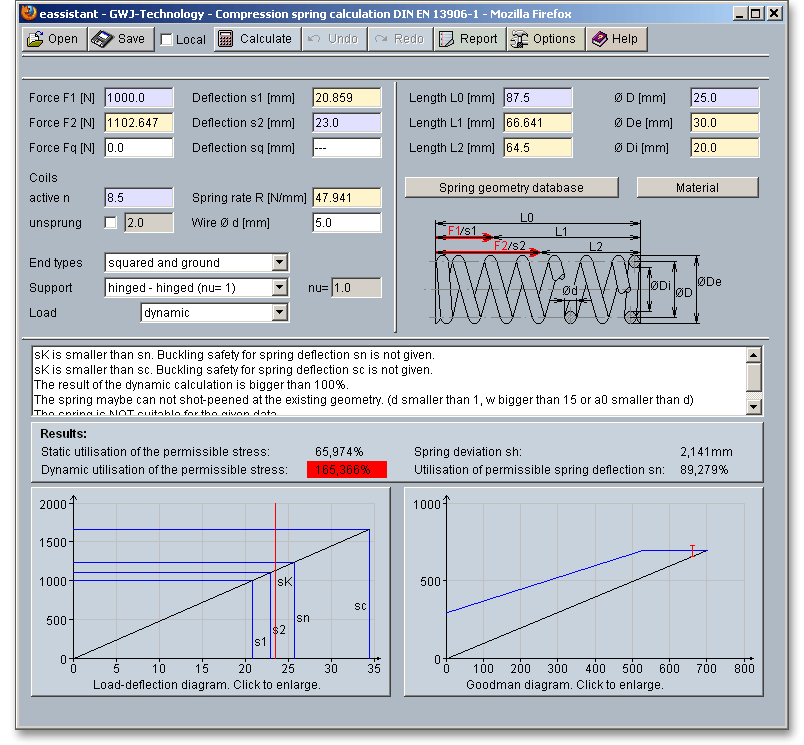
All important calculation results, such as the static and dynamic utilization of the permissable stress, the spring
deviation  and the utilization of the permissable spring deflection
  , will be calculated during every input
and will be displayed in the result panel. A recalculation occurs after every data input. Any changes that are
made to the user interface take effect immediately. Press the Enter key or move to the next input field to
complete the input. Alternatively, use the Tab key to jump from field to field or click the ‘Calculate’
button after every input. Your entries will be also confirmed and the calculation results will displayed
automatically.
, will be calculated during every input
and will be displayed in the result panel. A recalculation occurs after every data input. Any changes that are
made to the user interface take effect immediately. Press the Enter key or move to the next input field to
complete the input. Alternatively, use the Tab key to jump from field to field or click the ‘Calculate’
button after every input. Your entries will be also confirmed and the calculation results will displayed
automatically.
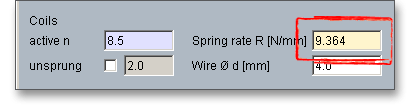
The spring rate  is = 9,364 N/mm and is displayed above the input field for the wire diameter.
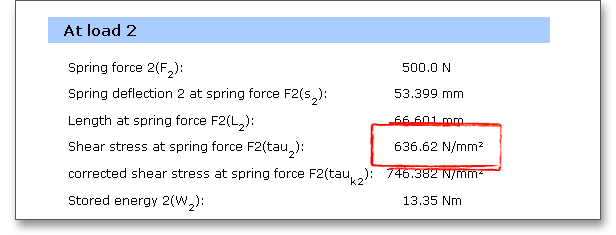
The calculation report provides the result for the shear stress. Click the button ‘Report’ to open the calculation
report. The shear stress  for the spring force
  is = 636,62 N/mm
 .
.
You will find the value for the spring deviation  in the result panel. The spring deviation
  is = 21,36
mm.
is = 21,36
mm.
The results are clearly displayed in the diagrams. Click on the diagram to see the full image and details.
After the completion of your calculation, you can create a calculation report. Click on the ‘Report’ button.
You can navigate through the report via the table of contents that provides links to the input values, results and figures. This calculation report contains all input data, the calculation method as well as all detailed results. The report is available in HTML and PDF format. The calculation report saved in HTML format, can be opened in a web browser or in Word for Windows. You may also print or save the calculation report:
 ‘Save as’ from your browser menu
bar. Select the file type ‘Webpage complete’, then just click on the button ‘Save’.
‘Save as’ from your browser menu
bar. Select the file type ‘Webpage complete’, then just click on the button ‘Save’.
When the calculation is finished, you can save it to your computer or to the eAssistant server. Click on the button ‘Save’.
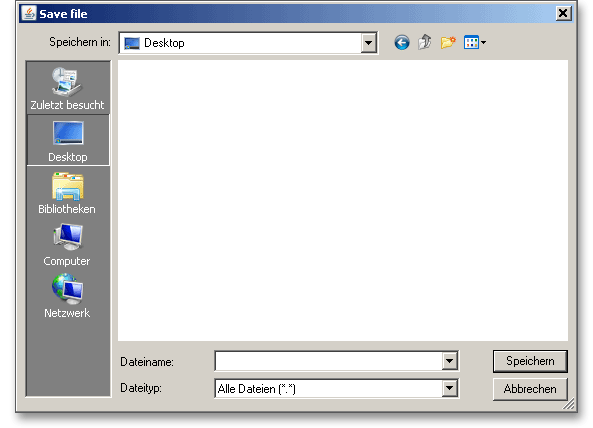
Before you can save the calculation to your computer, you need to activate the checkbox ‘Enable save data local’ in the project manager and the option ‘Local’ in the calculation module. A standard Windows dialog for saving files will appear. Now you will be able to save the calculation to your computer.
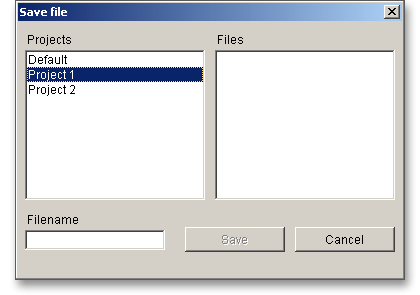
In case you do not activate the option in order to save your files locally, then a new window is opened and you can save the calculation to the eAssistant server. Please enter a name into the input field ‘Filename’ and click on the button ‘Save’. Then click on the button ‘Refresh’ in the project manager. Your saved calculation file is displayed in the window ‘Files’.
Our manual is improved continually. Of course we are always interested in your opinion, so we would like to know what you think. We appreciate your feedback and we are looking for ideas, suggestions or criticism. If you have anything to say or if you have any questions, please let us know by phone +49 (0) 531 129 399-0 or email eAssistant@gwj.de.
 and wire diameter