Contents

    1.1   Example: Interference fit calculation according to DIN 7190
       1.1.1   Start the calculation module
       1.1.2   The input values
       1.1.3   The calculation
       1.1.4   The results
       1.1.5   The documentation: The calculation report
       1.1.6   How to save the calculation
       1.1.7   The stepped hub geometry
       1.1.8   The button ‘Options’

1.1 Example: Interference fit calculation according to DIN 7190

Our calculation example shall support you with a fast start into the interference fit calculation module with its numerous possibilities. Letīs take a look at the follwing example.

1.1.1 Start the calculation module

Please login with your user name and your password. Select the module through the tree structure of the Project Manager by double-clicking on the module or clicking on the button ‘New calculation’.

The calculation module is opened in a new window.

PIC


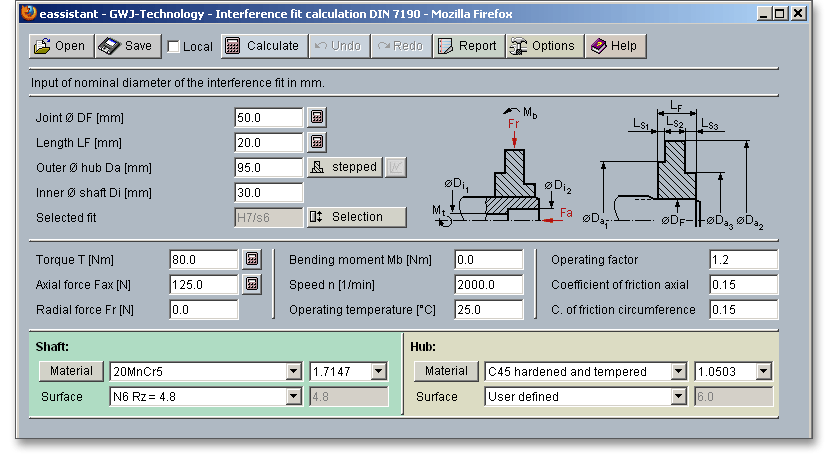
Figure 1.1: A general overview

1.1.2 The input values

A cylindrical interference fit has to be dimensioned against sliding. Enter the following values into the appropriate input fields:

Joint diameter = 50 mm

Length = 20 mm

Outer diameter hub = 95 mm

Inner diameter shaft = 30 mm

Torque = 80 Nm

Axial force = 125 N

Speed = 2.000 min/-1

Operating temperature = 25 C

Operating factor = 1.2

Coefficient of friction axial = 0.15

Coefficient of friction circumference = 0.15

Material shaft = 20MnCr5

Surface shaft = N6

Material hub = C45 hardened and tempered

Surface hub = Rz = 6

1.1.3 The calculation

Please enter the values into the input fields. When you enter your data, the results are determined and displayed immediately in the result panel. During the input of the values it can happen that the results will be marked in red. Nevertheless please continue to input the data as usual.

PIC


Figure 1.2: The input of the values

Note: Please note the section ‘Selection of fit’ for the specification of the tolerances. With the definition of the surface quality of the hub, you have to notice that the given value (Rz=6) has to be entered by the ‘User defined’ input. Select ‘User defined’ in the appropriate listbox and enter the desired value into the input field next to the listbox.

Please note: Change the unit of measurement

If you right-click into an input field, then you can change the unit of measurement very easily.

PIC

1. Just a right-click on the input field where you want to change the unit.

A context menu is opened. You will get a survey of all units which are available. The two arrows mark the current setting.

2. Select a unit.

With the modification of the measurement, the description of the input field changes. The current value will be converted into the appropriate unit of measurement.

Selection of fit / Calculation of possible fits

The button ‘Selection’ allows you to open the dialog window for selection of fits. Here you can choose the possible tolerances or the appropriate fits can be suggested.

PIC


Figure 1.3: The button ‘Selection of fit’

You will find the tolerance system according to DIN ISO 286 with all IT classes. On the top of the dialog window, you can select easily the tolerance field for the shaft and hub via listboxes.

PIC


Figure 1.4: Dialog window for the selection of fits

For the selected tolerance the upper deviation and the lower deviation for shaft and hub will be displayed. Furthermore the specification of the fit type as well as the highest and lowest interference occurs.

PIC


Figure 1.5: The deviation for the tolerance

All deviations for the shaft and hub can be entered directly. You have to select the option ‘Activate input of user defined tolerances’.

PIC


Figure 1.6: User-defined tolerances

For the dimensioning of a fit you have got different possiblities. In the following we describe these possibilities for you. In our example we will explain, how you can find the right fit with the calculation of possible fits.

Please confirm with the button ‘OK’.

The fit is taken over to the main mask of your calculation.

The selection of fits based on the calculation example

Click on the button ‘Selection’.

PIC


Figure 1.10: The button ‘Selection’

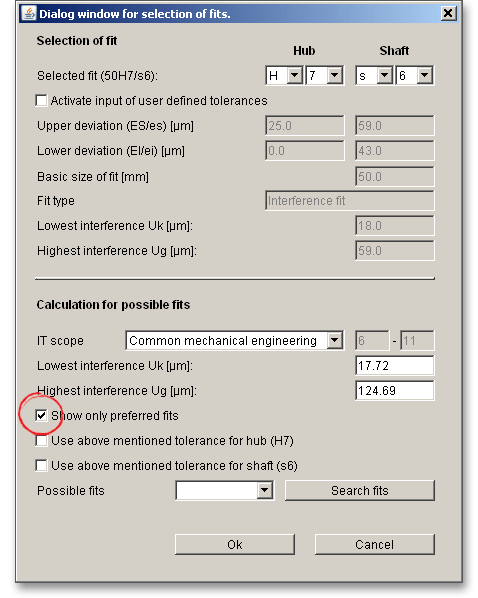
The dialog window for the selection of fits opens.

Activate the option ‘Show only preferred fits’.

PIC


Figure 1.11: Activate preferred fits

Click on the button ‘Search fits’.

PIC


Figure 1.12: Search fits

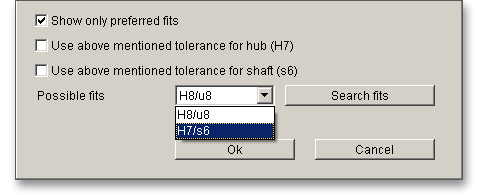
Two fits are suggested.

PIC


Figure 1.13: Suggestion of possible fits

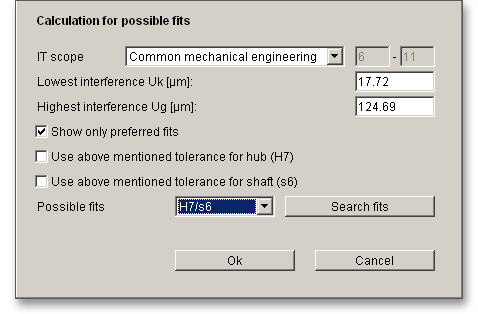
Select the fit H7 / s6.

PIC


Figure 1.14: Select the fit

Confirm with the button OK.

The interference fit is taken over to the main mask of the calculation module.

The dimensioning of the maximum torque

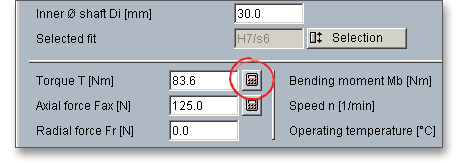
Due to the fit calculation, a safety close to the given minimum safety has been determined. By the help of the comfortable dimensioning functions, other values can be checked and optimized regarding the use of the minimum safety. So the maximum torque can be defined using the given minimum safety against sliding (SR=1.2) . The button ‘Options’ allows you to specify the minimum safety (see section 1.1.8 ‘The button Options’). Click on the dimensioning button (‘calculator symbol’) next to the input field for the torque.

PIC


Figure 1.15: The dimensioning function

Now the torque is determined.

PIC


Figure 1.16: The minimum safety

Here the maximum torque is ‘83.60 Nm’. If you enter now a higher value than ‘83.60 Nm’, the safety against sliding is fallen below.

The result panel is marked in red. You also get an appropriate information in the message window.

PIC


Figure 1.17: The result panel

Now click on the calculator symbol again, then the maximum torque is determined (83.50 Nm) and the minimum safety of ‘1.2’ is fulfilled. The specifications of the results is given for the mean, highest, and lowest interference. If the minimum safety is not fulfilled, then the safety is marked in red.

The ‘Redo’ and ‘Undo’ button

The button ‘Undo’ allows you to reset your input to an older state. The button ‘Redo’ reverses the undo.

PIC


Figure 1.18: Button ‘Redo’ and ‘Undo’

The material selection

Select the material and the roughness from the material selection. Use the entry ‘User defined’ to specify your individual material.

PIC


Figure 1.19: The material selection

In case you need further information on the corresponding material, easily click on the button ‘Material’. This applies for the shaft as well as for the hub.

The message window

The calculation module contains a message window. You will find a message window in all calculation modules where you will get some hints, messages, or warnings. You will find all information and hints, which are displayed in the message window, in the calculation report later.

PIC


Figure 1.20: The message window

The quick info line

Move the mouse pointer to an input field or a button, then you will get some additional information. This information will be displayed in the quick info line.

PIC


Figure 1.21: The quick info line

1.1.4 The results

The specification of the results is displayed for the mean, minimum, and maximum interference of the fit. In case a minimum safety is not fulfilled, the result will then be marked in red. After the value was taken over, the results will be determined and displayed.

PIC


Figure 1.22: The results

1.1.5 The documentation: The calculation report

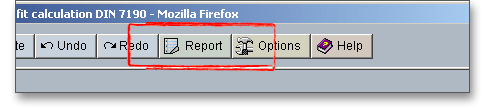
In case you have finished your calculation, please click on the button ‘Report’.

PIC


Figure 1.23: The button ‘Report’

The calculation report is opened.

PIC


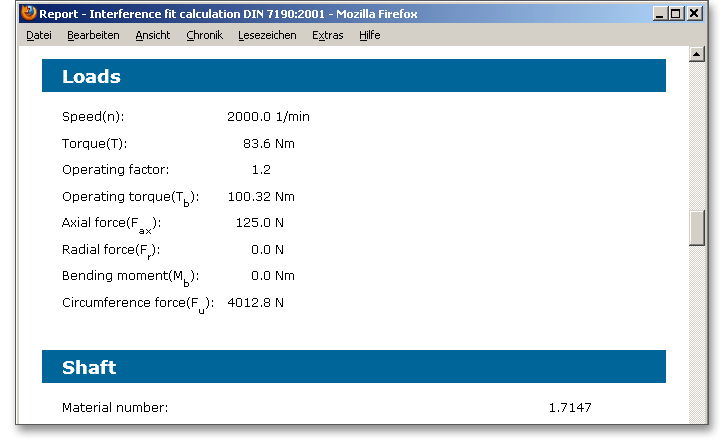
Figure 1.24: The calculation report

The calculation report contains a table of contents. You can navigate through the report via the table of contents that provides links to the input values, results and figures. The report is available in HTML and PDF format. Calculation reports, saved in HTML format, can be opened in a web browser or in Word for Windows.

PIC


Figure 1.25: PDF, Save, Print

1.1.6 How to save the calculation

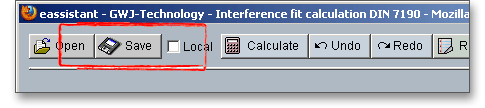
After accomplishing your calculation, save the calculation either on the eAssistant server or on your workstation locally. Click on the button ‘Save’.

PIC


Figure 1.26: The button ‘Save’

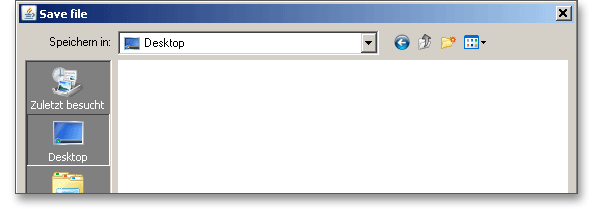
If you have activated the option ‘Enable file save local’ in the Project Manager and the option ‘Local’ in the calculation module, a standard Windows dialog for saving the file on your workstation appears.

Please note: You must not forget that the calculation module has to be closed to activate the option ‘Enable file save local.’

PIC


Figure 1.27: Windows dialog to save the file

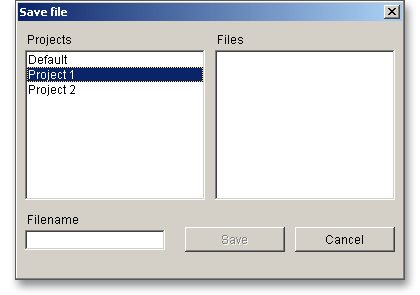
In case you have not activated this option, a new window is opened and you can save the calculation on the eAssistant server (find further information in the chapter ‘The general functions’).

PIC


Figure 1.28: Save the calculation

Please enter a name into the input field ‘Filename’ and click on the button ‘Save’. Then click on the button ‘Refresh’ in the Project Manager. Your saved calculation file is displayed in the window ‘File’.

1.1.7 The stepped hub geometry

Here you can define the geometry for the hub with a varying outer diameter and a varying shaft hole. Click on the button ‘stepped’ next to the input field ‘Outer diameter hub’.

PIC


Figure 1.29: The button ‘Stepped’

A new window is opened.

PIC


Figure 1.30: Definition of geometry

Activate the option ‘Use stepped hub geometry’.

PIC


Figure 1.31: Stepped hub geometry

Define here the several hub segments. Enter the number of hub segments, the lengths of segments, the outer diameter of the hub as well as the inner diameter of the shaft.

PIC


Figure 1.32: Define several segments

Please confirm with the button ‘OK’.

All the input values will be taken over. The ‘Diagram’ button is activated.

PIC


Figure 1.33: The ‘Diagram’ button

Click on the ‘Diagram’ button.

The diagram is opened. That diagram shows the compressive stress along the length of the press fit.

The current values can be selected and displayed using the mouse pointer. On the basis of the minimum, mean and maximum interference, all values for the minimum (pk), mean (p) and maximum (pG) compressive stress will be represented.

PIC


Figure 1.34: The diagram ‘compressive stress’

1.1.8 The button ‘Options’

The button ‘Options’ allows you to define the minimum safeties, the mating clearance, the temperature at joining (room temperature and shaft temperature) as well as the coefficients of friction at joining for pressing in and pressing out for a force fit. Additionally, there is the possibility to enter the number of decimal places for the output of the numerical values in the report. Click on the button ‘Options’.

PIC


Figure 1.35: The ‘Options’ button

A new window is opened.

PIC


Figure 1.36: The ‘Options’ button

The following options are available:

Our manual is improved continually. Of course we are always interested in your opinion, so we would like to know what you think. We appreciate your feedback and we are looking for ideas, suggestions or criticism. If you have anything to say or if you have any questions, please let us know via telephone +49 (0) 531 129 399-0 or email eAssistant@gwj.de.