|
|
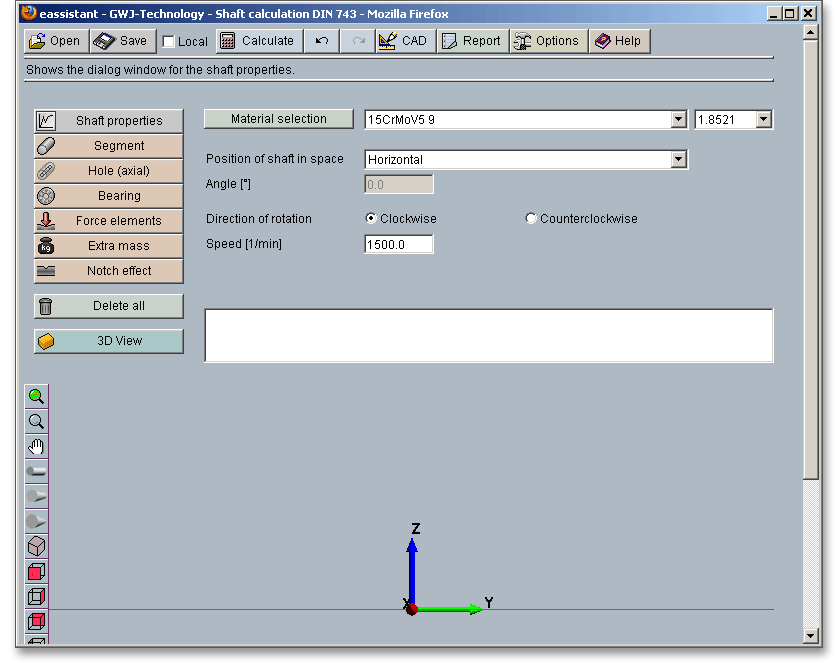
Please login with your username and your password. Select the module ‘Shaft calculation’ through the tree structure of the project manager by double-clicking on the module or clicking on the button ‘New calculation’.
This calculation example shows a winding shaft with a fixed and movable bearing and an extra mass.
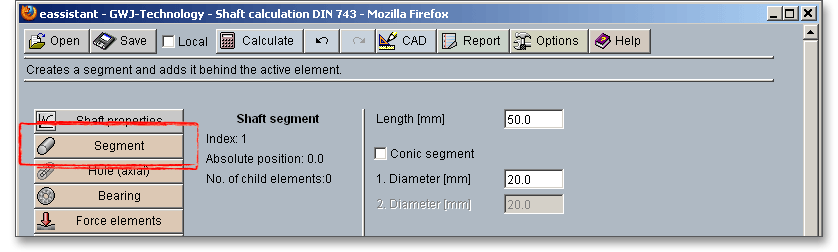
Click the button ‘Segment’ in order to create the first shaft segment. Enter a length of 50 mm and a diameter of 20 mm into the input fields.
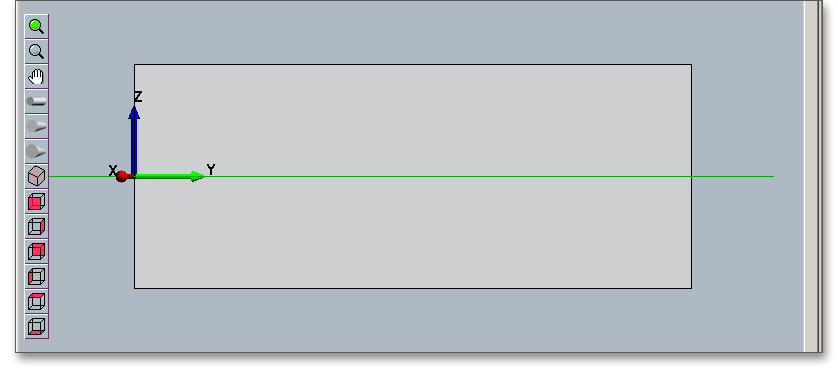
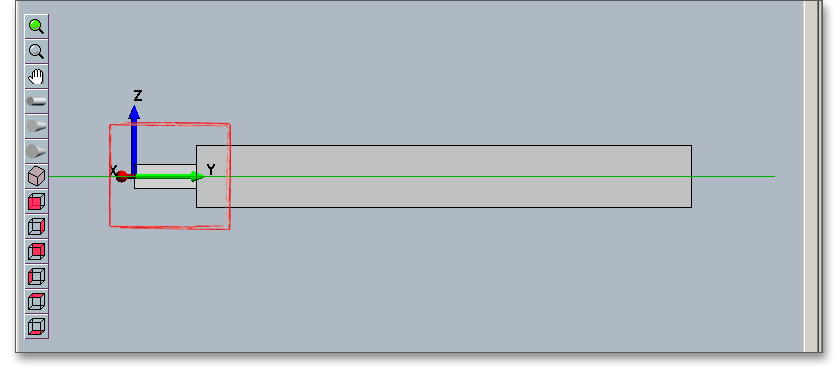
The first segment is represented.
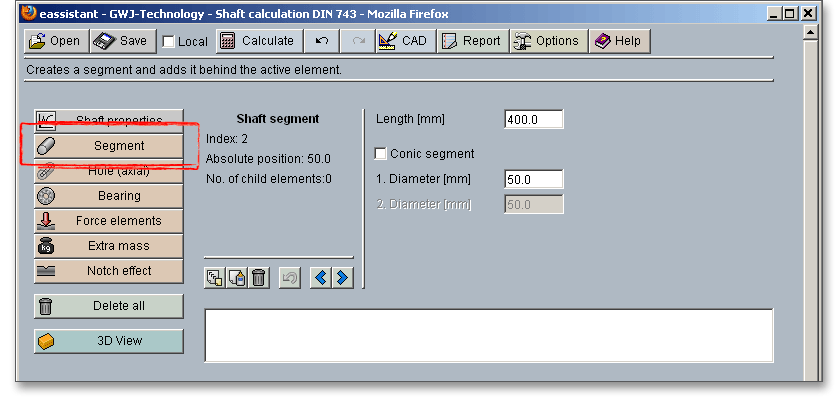
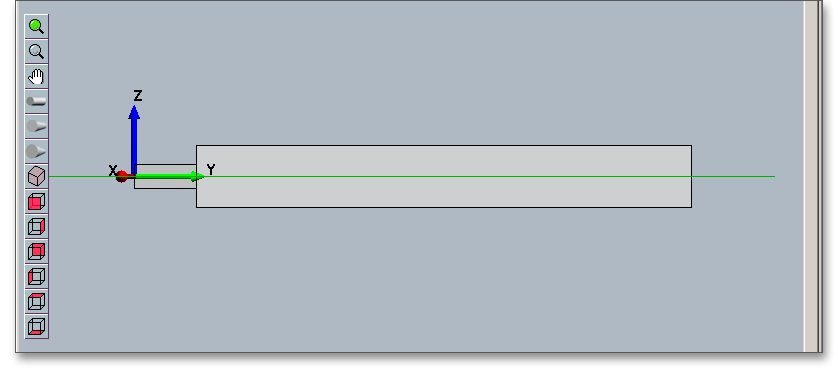
To create the second shaft segment, click the button ‘Segment’ again. The second segment has a length of 400 mm and a diameter of 50 mm.
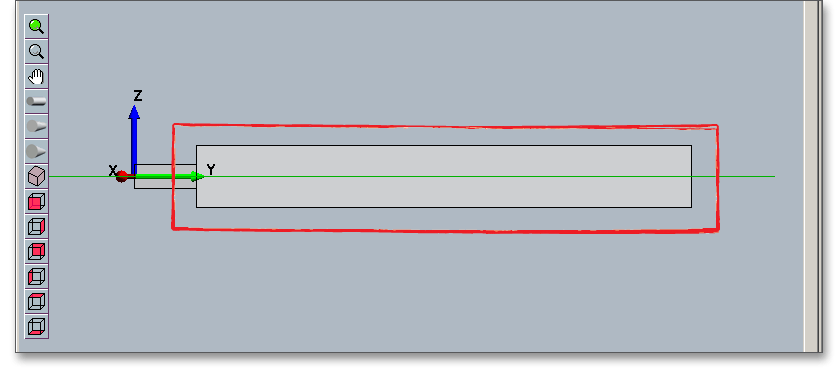
This second segment is represented.
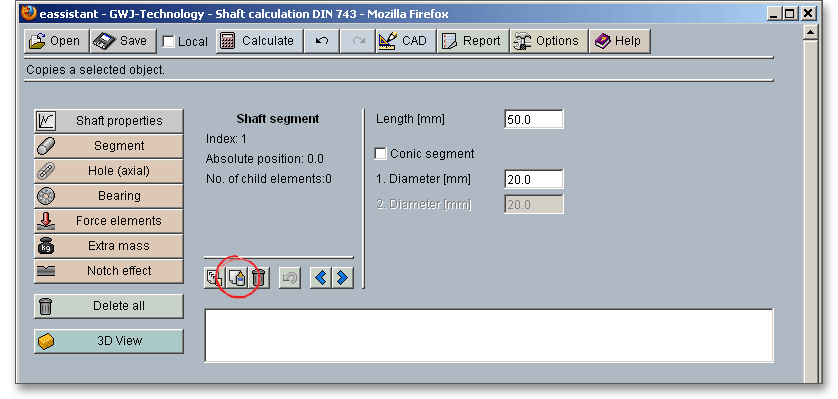
The third shaft segment gets the same dimensions as the first shaft segment. That is why we can use the ‘Copy’ and ‘Add’ function to create the third segment. Click on the first segment.
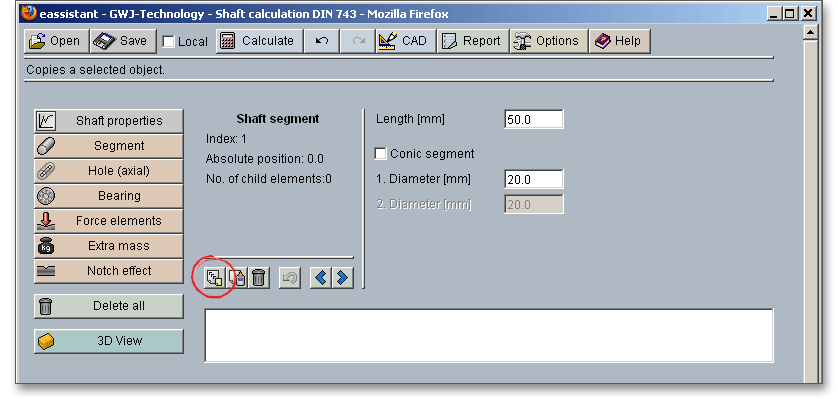
Click on the button ‘Copy’.
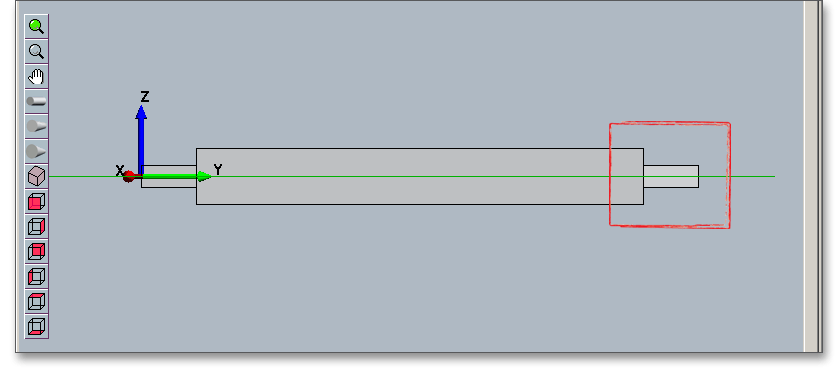
Select the second segment and place the third segment next to it.
Click on the button ‘Add’.
The copied segment is added as a third shaft segment.
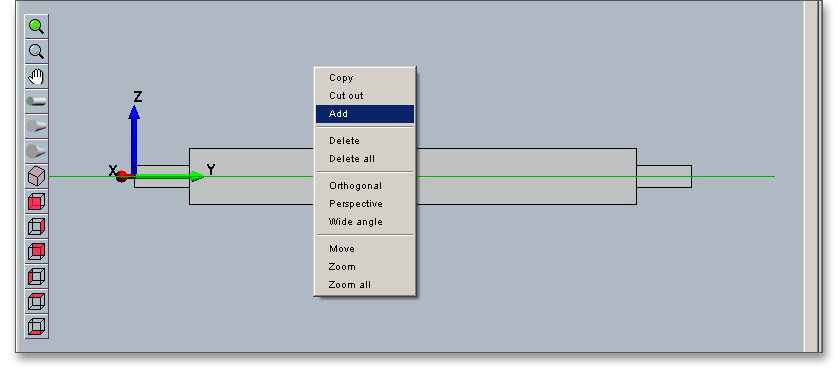
Note: If you select a segment and you click the right mouse button, a new context menu will open. Choose the
menu items ‘Copy’ and ‘Add’.
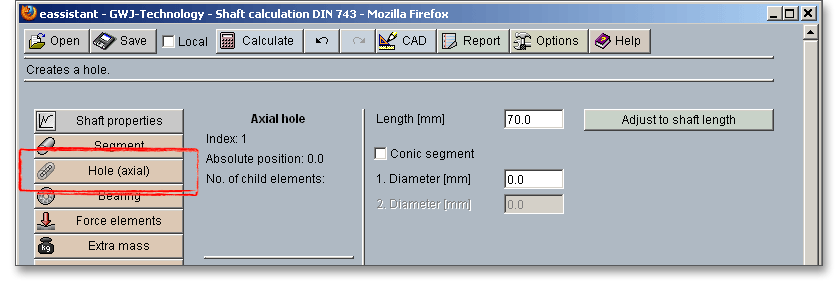
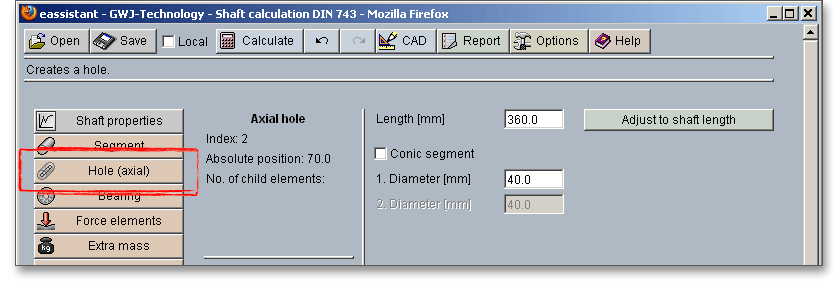
Click the button ‘Hole (axial)’ in order to create the first hole. Enter a length of 70 mm and a diameter of 0 mm into the input fields.
Click the button ‘Hole (axial)’ again in order to create a second hole. Enter a length of 360 mm and a diameter of 40 mm into the input fields.
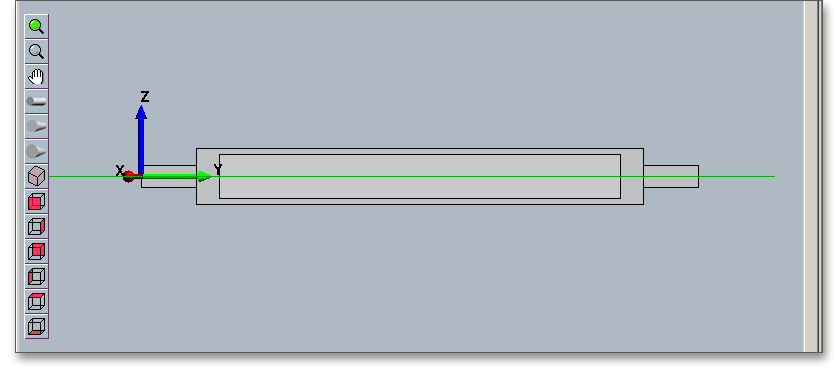
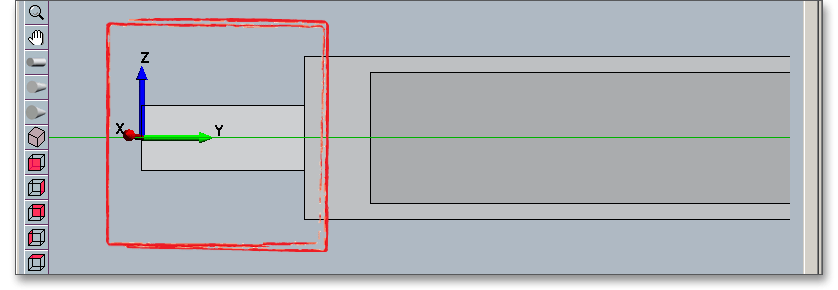
The hollow shaft is represented.
Note: Use your keyboard to select the individual elements. For example, if you want to change from the
value input of a shaft segment to the selection mode, then press the ‘Page down’ key. Then use
the two arrow keys to select the elements. Use the cursor keys ‘Up’ and ‘Down’ to move from the
shaft segments to the axial holes. In order to change the input values of an element, press ‘Page
up’.
Select the first shaft segment to add the bearing to the shaft.
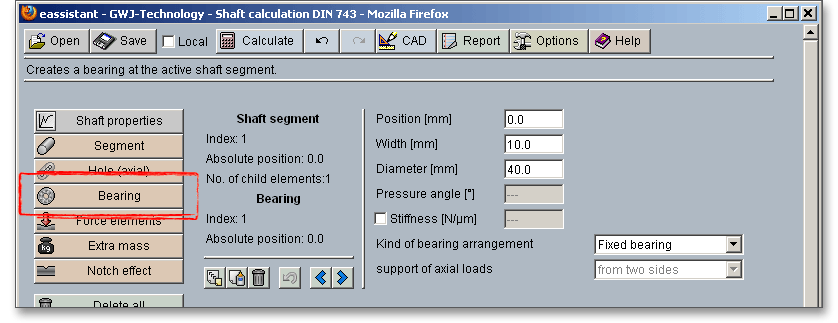
Click on the button ‘Bearing’.
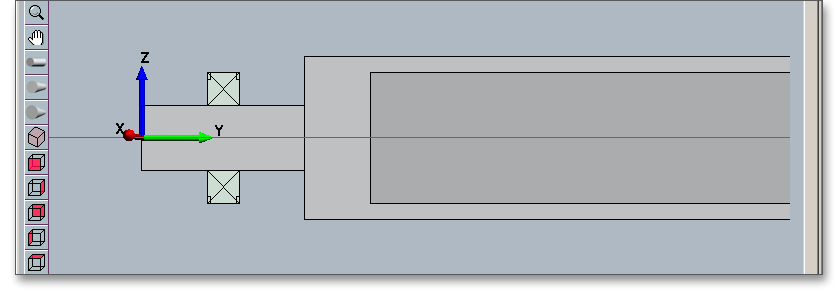
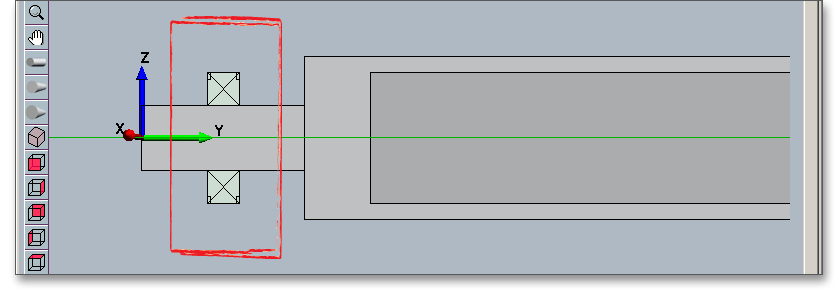
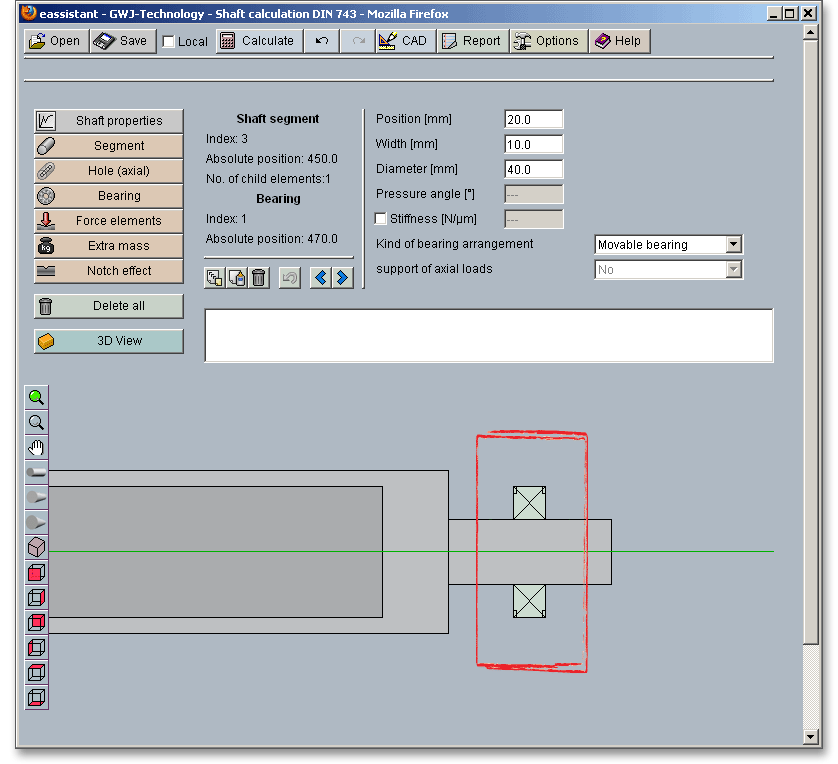
A bearing is added. Enter 20 mm for the bearing position, 10 mm for the bearing width and 40 mm for the bearing diameter. As bearing arrangement, select ‘Fixed bearing’ from the listbox.
In order to add the second bearing, select the first bearing and click the button ‘Copy’.
Select the third shaft segment and click the ‘Add’ button. Because the bearing is copied, it is not necessary to define the position, width and diameter of the bearing, you just need to define the bearing arrangment. Select ‘Movable bearing’ from the listbox.
To position the load, select the second shaft segment.
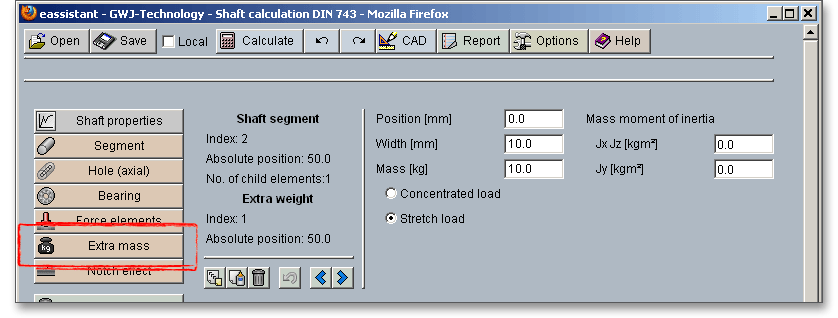
Click on the button ‘Extra mass’.
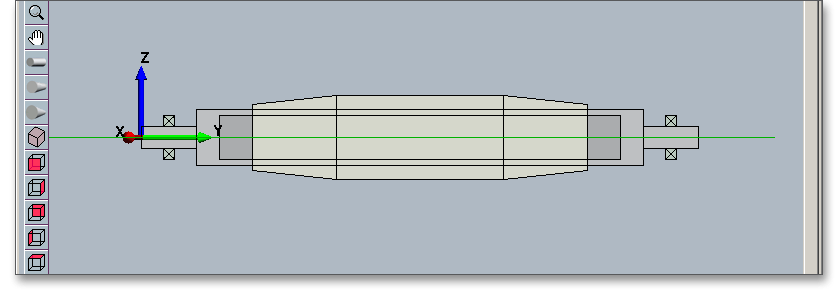
The extra mass will be positioned on the shaft segment. Please define the extra mass with 50 mm for position, 300 mm for width and 950 kg for mass.
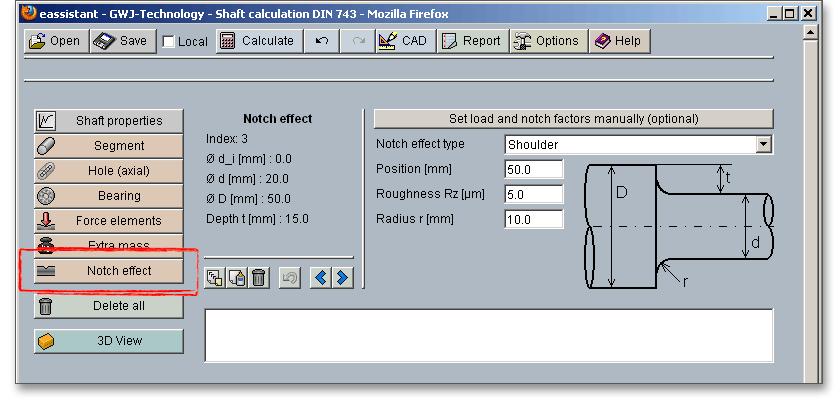
Click on the button ‘Notch effect’ in order to add the notch effects.
A notch effect is added and can be placed on the shaft. Enter the position of the notch effect or change the postion with the two arrow keys. Selct the notch effect from the listbox.
Define the following notch effects:
 = 5 mm
and radius
= 5 mm
and radius  = 10 mm
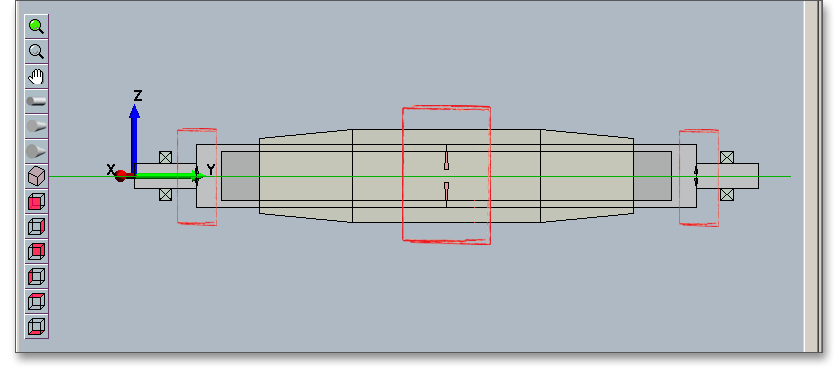
After defining the entire shaft geometry with bearings, loads and notch effects, you can start your calculation. To start the calculation, click the button ‘Calculate’. The button changes then its description into ‘Geometry’ and you get into the calculation part. The calculation part enables you to carry out the calculation. If you want to modify the geometry of the shaft, you have to go back to the geometry part. To do so, please click the button ‘Geometry’.
When you are in the calculation part of the module, it is not possible to change the geometry. In order to change the geometry, please go back to the geometry part by clicking the ‘Geometry’ button.
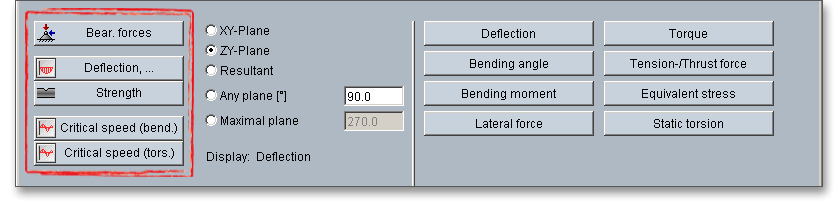
Here, you can carry out the different calculations, e.g., the strength calculation according to DIN 743.
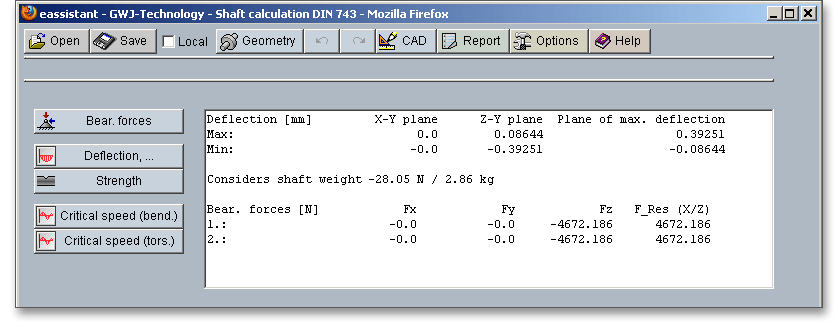
In order to start the calculation of bearing forces, click the button ‘Bearing forces’.
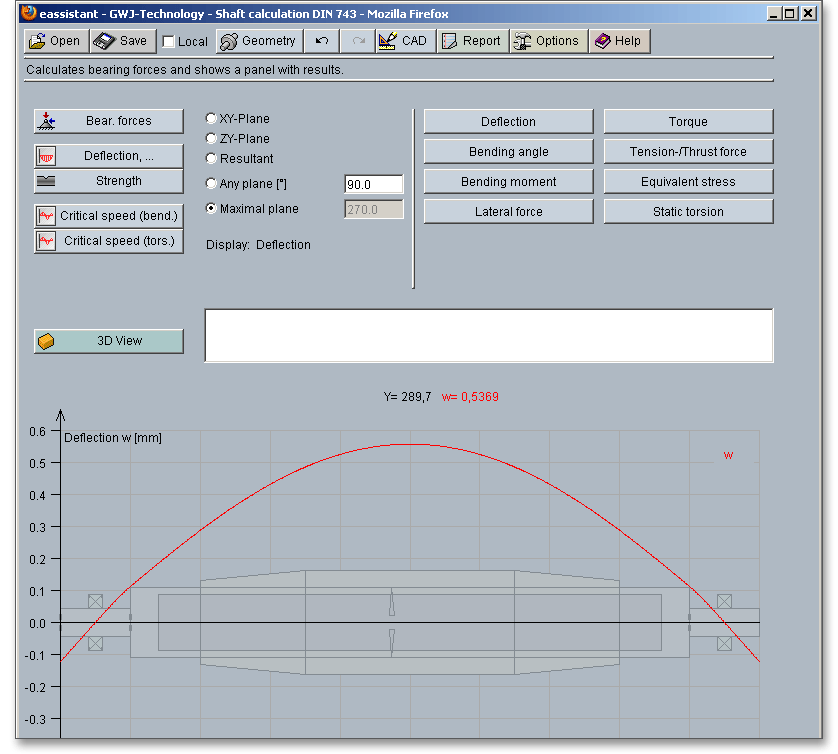
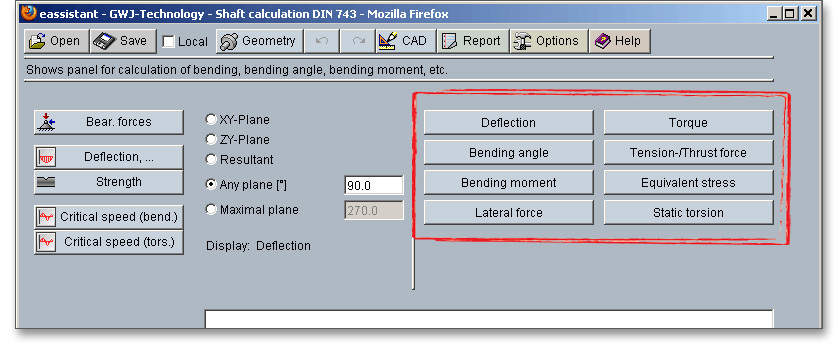
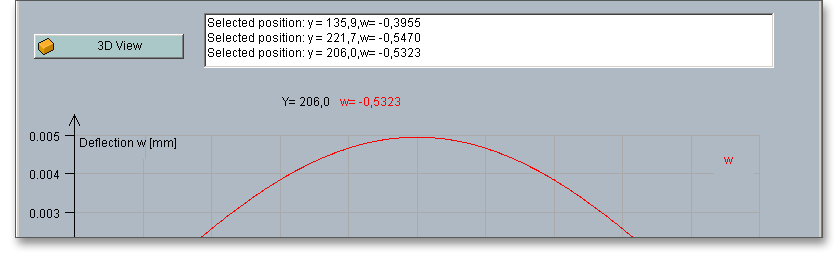
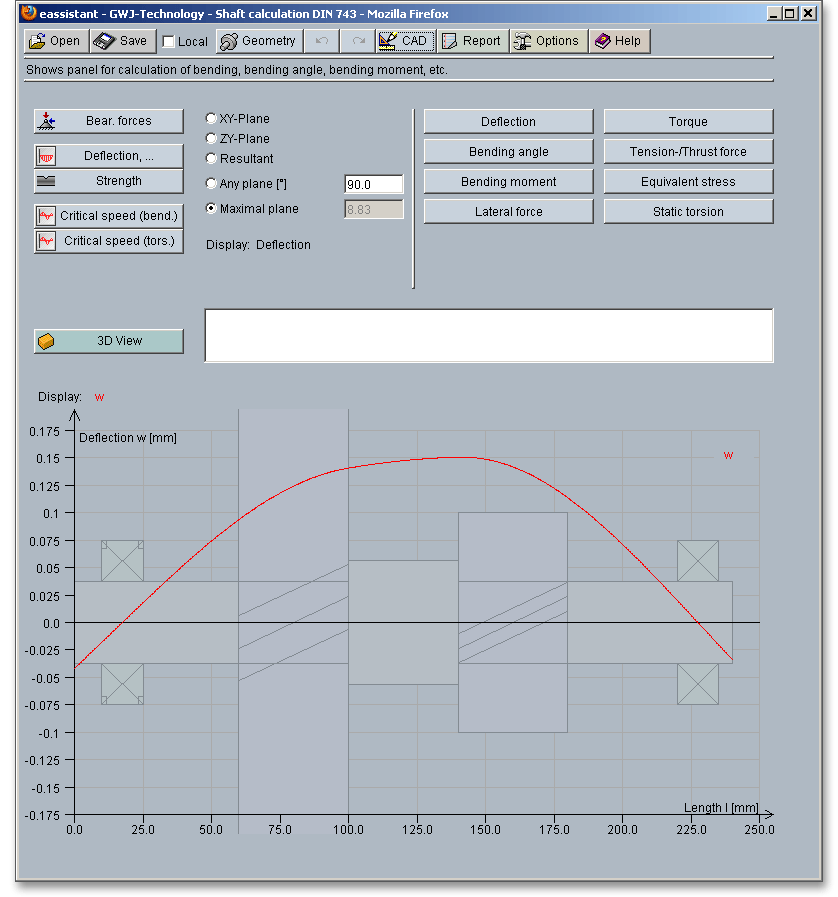
Click the button ‘Deflection’ to start the calculation of the deflection, bending angle and bending moment. Open the different diagrams for forces and moments.
You can select all values for deflection directly from the representation with just a mouse click. The values appear in the text field.
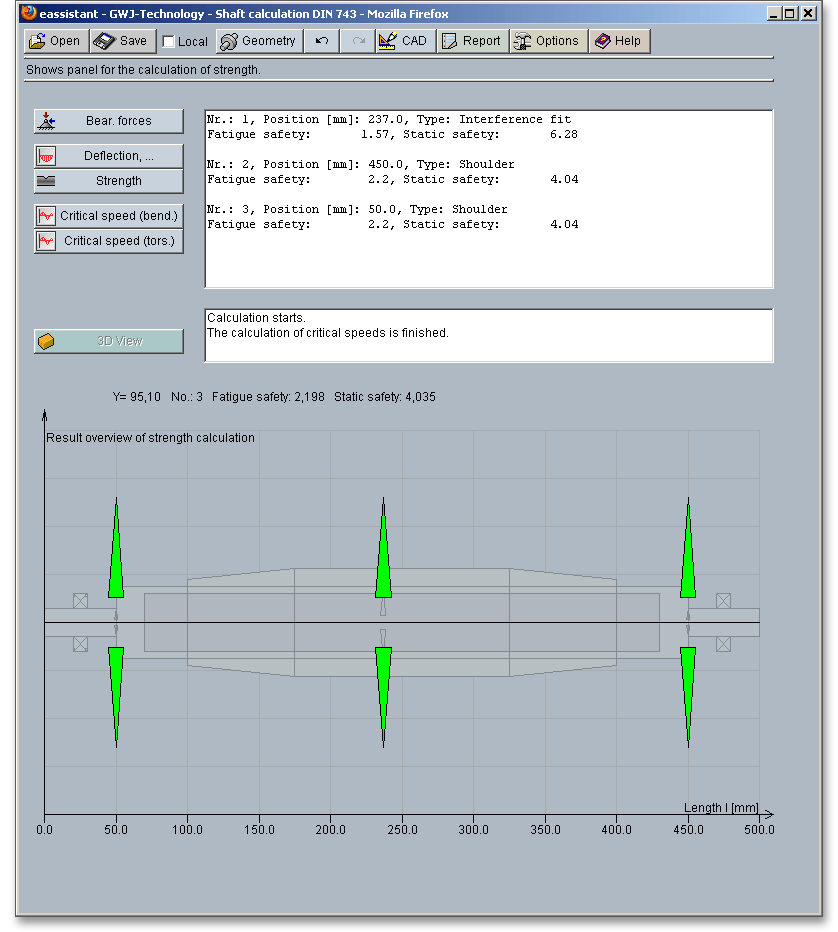
Start the strength calculation by clicking the button ‘Strength’. The strength calculation provides a complete static and fatigue proof of strength according to DIN 743. The exact values appear in the text field and can be selected with a mouse click from the graphical representation.
The text field shows the most important calculation results. The calculation report provides all detailed calculation results. In addition, the results for the cross sections are represented in three different colors:
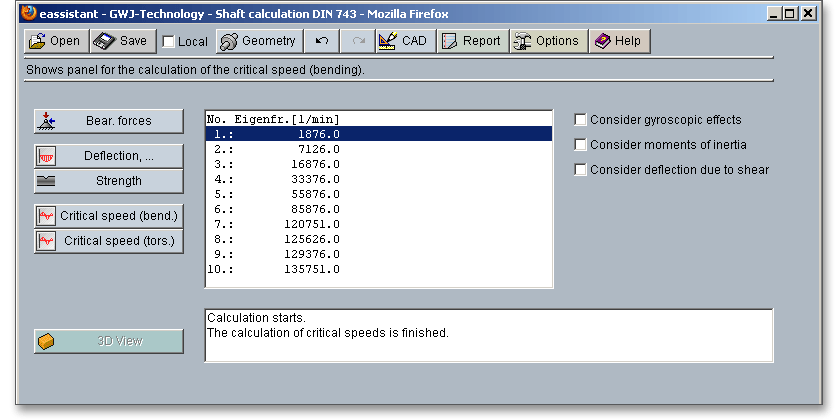
Start the calculation of the critical speeds by clicking the button ‘Critical speed (bending)’. Gyroscopic effects, moments of inertia, deflection due to shear can be taken into consideration.
To do so, please activate the appropriate check box.
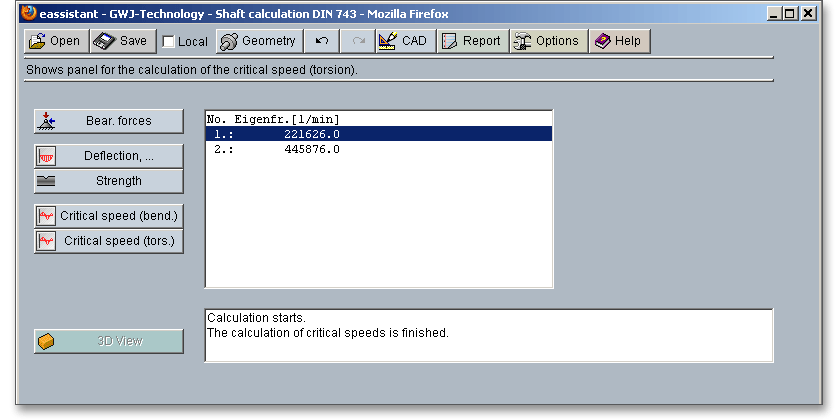
Click the button ‘Critical speed (torsion)’ in order to start the calculation of the critical speed.
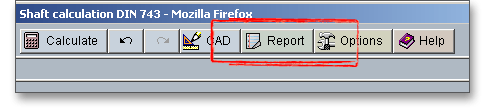
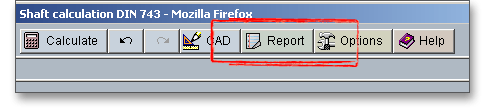
Now you can create the calculation report. Click on the button ‘Report’.
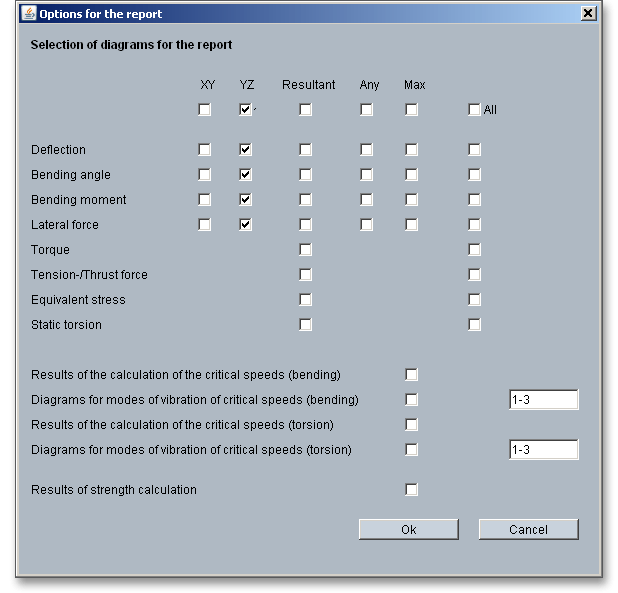
First the report configurator appears. The report configurator allows you to select which diagrams should appear in the calculation report and if the results of the strength calculation should be in the report, too.
During the generation of the report, a waiting screen appears. During the generation of the report, a waiting
screen appears. But you can continue to work with the calculation module. The length of time for the generation
of the report depends on the number of diagrams which have to be generated.
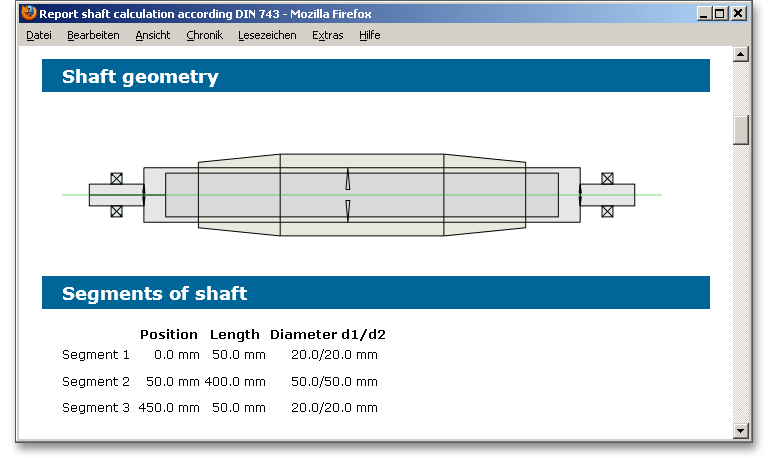
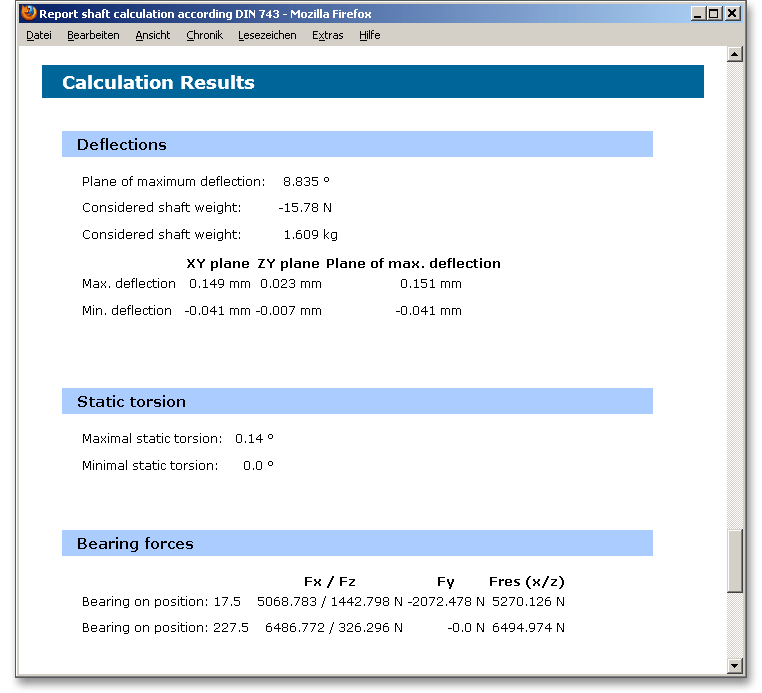
You can navigate through the report via the table of contents that provides links to the input values, results and figures. This calculation report contains all input data, the calculation method as well as all detailed results. The report is available in HTML and PDF format. The calculation report saved in HTML format, can be opened in a web browser or in Word for Windows. In HTML format, the figures are displayed in ‘gif’ format. In case a SVG viewer is available, you can display all graphics in SVG format. Right-clicking on the picture allows to zoom in and zoom out.
You may also print or save the calculation report:
 ‘Save as’ from your browser menu
bar. Select the file type ‘Webpage complete’, then just click on the button ‘Save’.
‘Save as’ from your browser menu
bar. Select the file type ‘Webpage complete’, then just click on the button ‘Save’.
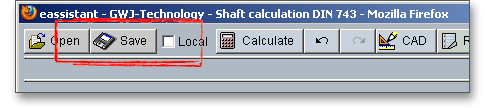
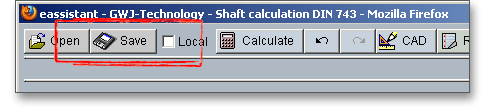
When the calculation is finished, you can save it to your computer or to the eAssistant server. Click on the button ‘Save’.
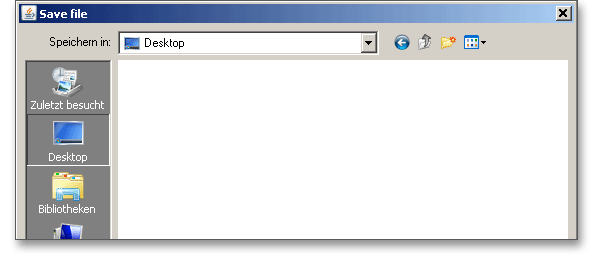
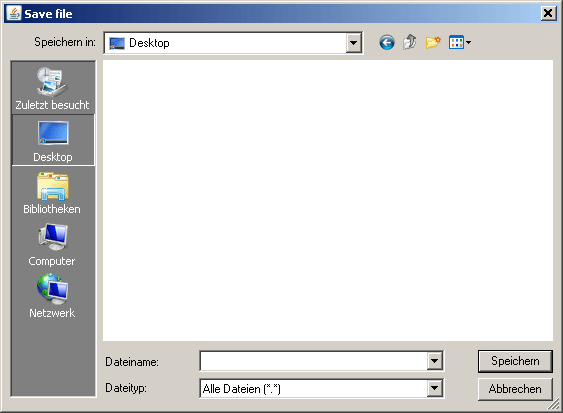
Before you can save the calculation to your computer, you need to activate the checkbox ‘Enable save data local’ in the project manager and the option ‘Local’ in the calculation module. A standard Windows dialog for saving files will appear. Now you will be able to save the calculation to your computer.
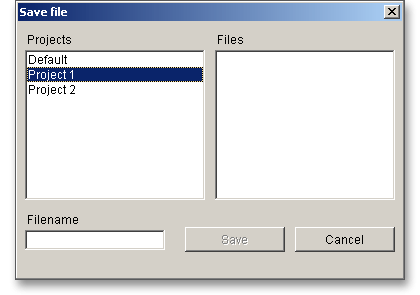
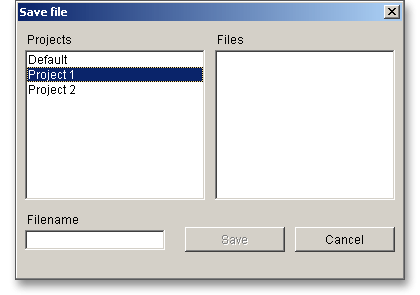
In case you do not activate the option in order to save your files locally, then a new window is opened and you can save the calculation to the eAssistant server. Please enter a name into the input field ‘Filename’ and click on the button ‘Save’. Then click on the button ‘Refresh’ in the project manager. Your saved calculation file is displayed in the window ‘Files’.
Here you find another example that shows how easy it is to create a shaft.
Create three shaft segments. Please enter the following input values:
| 1. Shaft segment: | Length  = 100 mm = 100 mm | Diameter  = 30 mm = 30 mm
|
| 2. Shaft segment: | Length  = 40 mm = 40 mm | Diameter  = 45 mm = 45 mm |
| 3. Shaft segment: | Length  = 100 mm = 100 mm | Diameter  = 30 mm = 30 mm |
Then add the two bearings. Please enter the following input values:
| 1. Bearing: | Position = 10 mm | Width  = 15 mm = 15 mm | Diameter  = 60 mm = 60 mm | Fixed bearing |
| 2. bearing: | Position = 80 mm | Width  = 15 mm = 15 mm | Diameter  = 60 mm = 60 mm | Movable bearing |
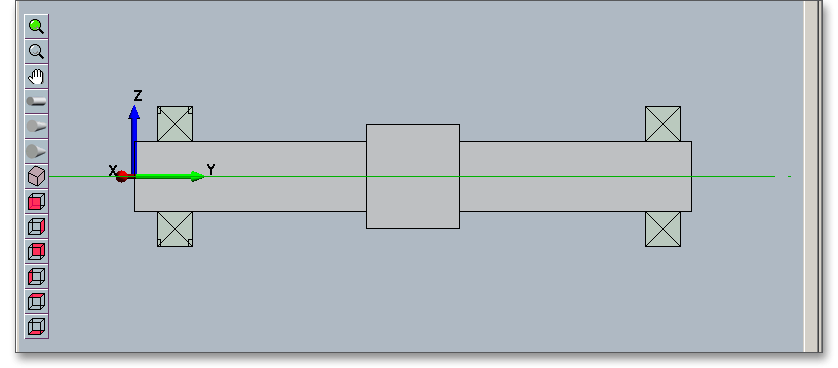
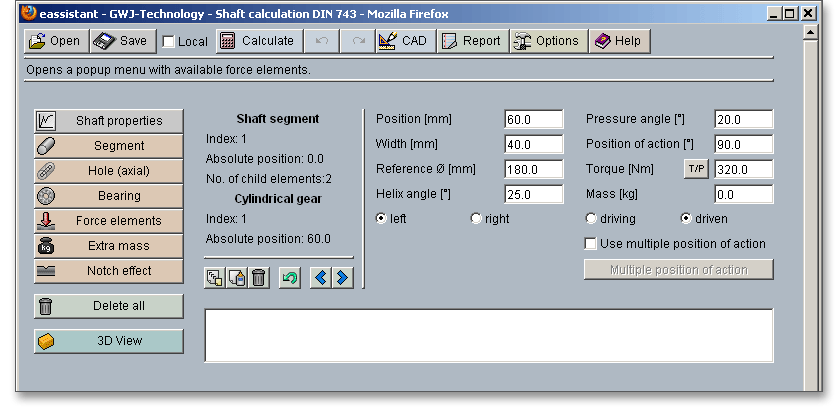
In order to create the cylindrical gear, select the first shaft segment. Click on the button ‘Force elements’ and select the menu item ‘Cylindrical gear’ from the submenu. Use the input mask to define the cylindrical gear. Enter the following input values:
| Position = 60 mm |
Width  = 40 mm = 40 mm |
Reference circle  = 180 mm = 180 mm |
Helix angle  = 25 = 25 |
Pressure angle  = 20 = 20 |
Position of action = 90 |
Torque  = 320 Nm = 320 Nm |
Mass  = 0.0 kg = 0.0 kg |
The first cylindrical gear is represented.
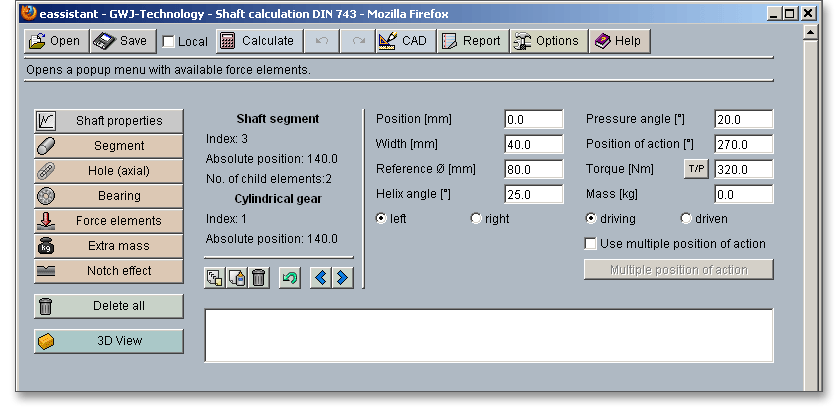
To create the second cylindrical gear, select the third shaft segment. Click on the button ‘Force elements’ and select the menu item ‘Cylindrical gear’ from the submenu. Please enter the following values into the input mask:
| Position = 0 mm |
Width  = 40 mm = 40 mm |
Reference circle  = 80 mm = 80 mm |
Helix angle  = 25 = 25 |
Pressure angle  = 20 = 20 |
Power of action = 270 |
Torque  = 320 Nm = 320 Nm |
Mass  = 0.0 kg = 0.0 kg |
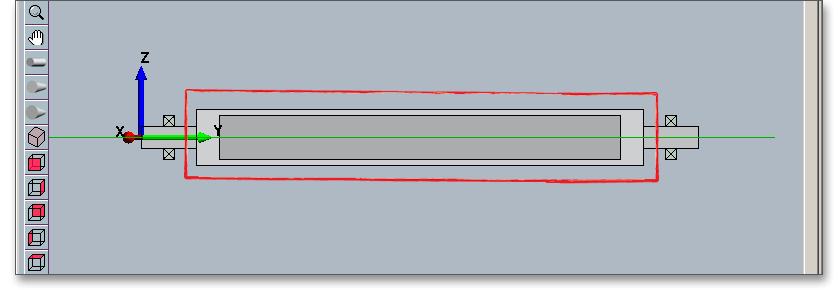
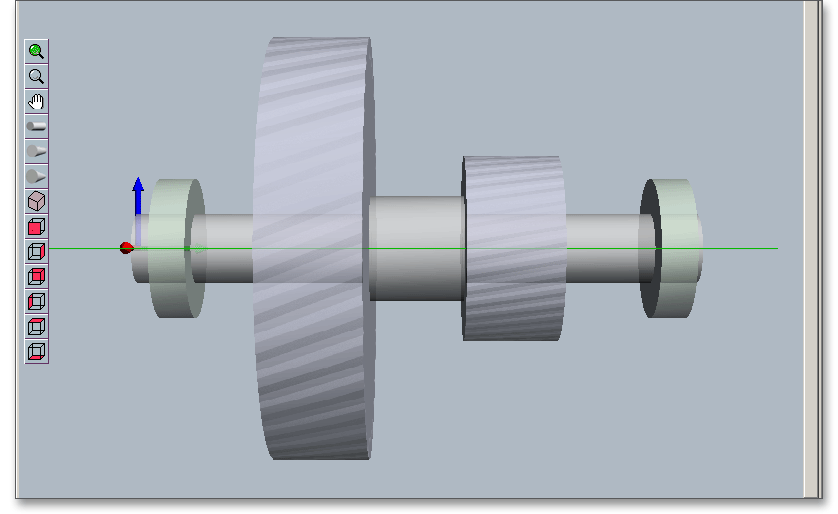
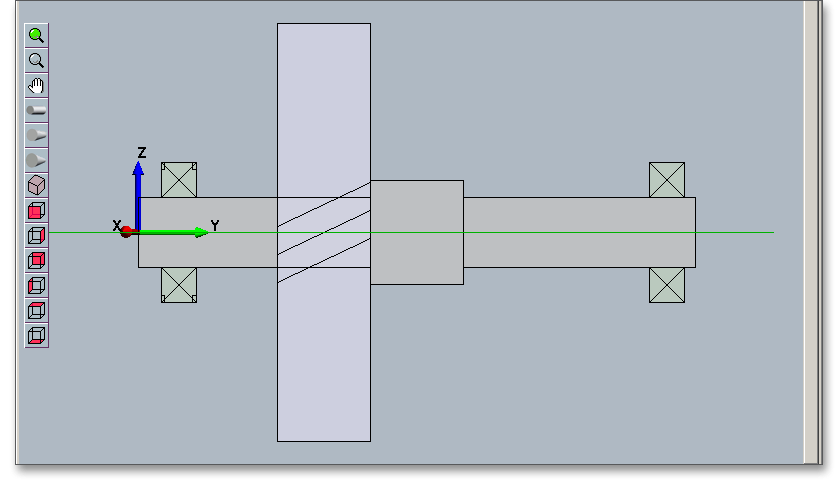
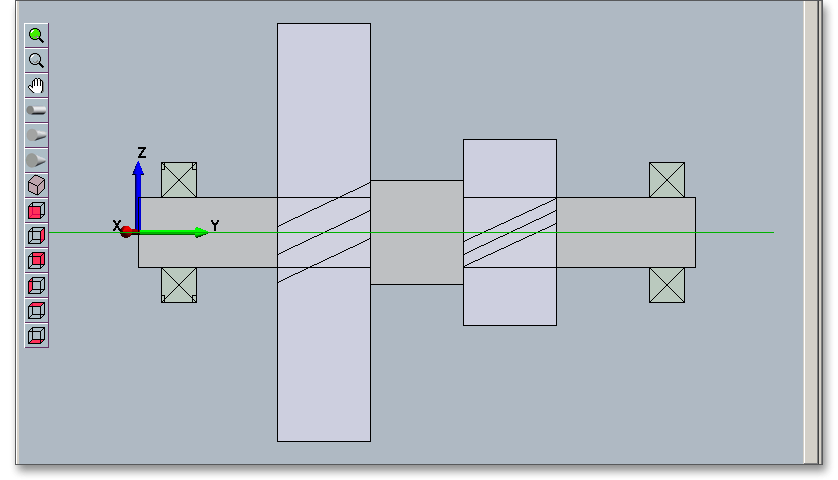
Both cylindrical gears will be represented.
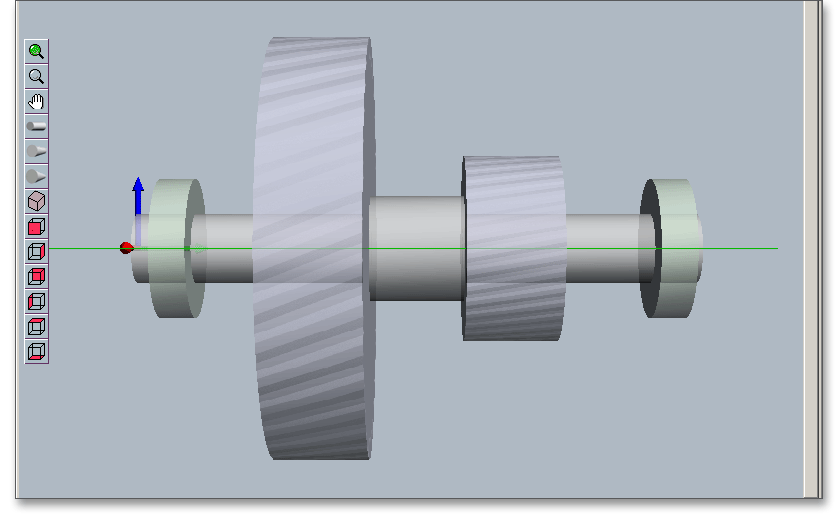
Then you can display the shaft in different views. Click the button ‘3D view’ and select the different views from
the toolbar and zoom into the graphic. Click on the button ‘Calculate’ and switch from the geometry part into the
calculation part. There you can run the calculations (find detail information in the section ‘How to start the
calculation’). The button ‘Report’ allows you to generate a report.
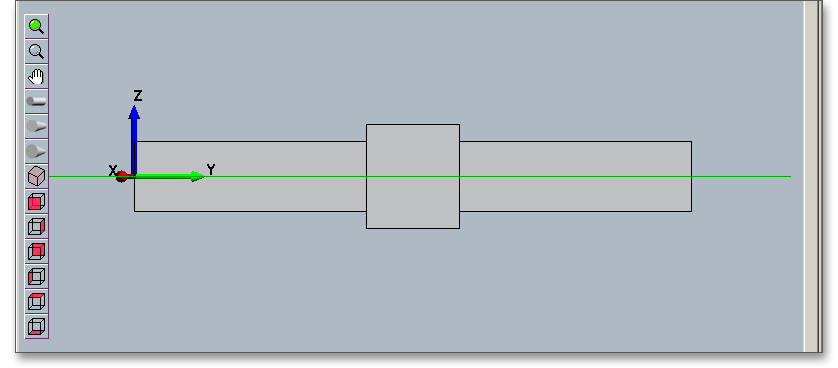
Clicking the ‘3D view’ button displays the three-dimensional presentation. The three-dimensional view allows to modify the elements. Select the element and change, for example, the position, length or diameter. To do so, please use the appropriate input fields. Click on the ‘2D / 3D view’ button again to switch back to the two-dimensional representation.
After defining the entire shaft geometry with the cylindrical gears and the bearings, you can start your calculation. To start the calculation, click the button ‘Calculate’. The button changes then its description into ‘Geometry’ and you get into the calculation part. The calculation part enables you to carry out the calculation. If you want to modify the geometry of the shaft, you have to go back to the geometry part. To do so, please click the button ‘Geometry’. With just one click, the following calculations can be carried out:
When you are in the calculation part of the module, it is not possible to change the geometry. In order to change the geometry, please go back to the geometry part by clicking the ‘Geometry’ button.
Now you can create the calculation report. Click on the button ‘Report’.
First the report configurator appears. The report configurator allows you to select which diagrams should appear in the calculation report and if the results of the strength calculation should be in the report, too. You can navigate through the report via the table of contents that provides links to the input values, results and figures. This calculation report contains all input data, the calculation method as well as all detailed results. The report is available in HTML and PDF format. The calculation report saved in HTML format, can be opened in a web browser or in Word for Windows. In HTML format, the figures are displayed in ‘gif’ format. In case a SVG viewer is available, you can display all graphics in SVG format. Right-clicking on the picture allows to zoom in and zoom out.
You may also print or save the calculation report:
 ‘Save as’ from your browser menu
bar. Select the file type ‘Webpage complete’, then just click on the button ‘Save’.
‘Save as’ from your browser menu
bar. Select the file type ‘Webpage complete’, then just click on the button ‘Save’.
When the calculation is finished, you can save it to your computer or to the eAssistant server. Click on the button ‘Save’.
Before you can save the calculation to your computer, you need to activate the checkbox ‘Enable save data local’ in the project manager and the option ‘Local’ in the calculation module. A standard Windows dialog for saving files will appear. Now you will be able to save the calculation to your computer.
In case you do not activate the option in order to save your files locally, then a new window is opened and you can save the calculation to the eAssistant server. Please enter a name into the input field ‘Filename’ and click on the button ‘Save’. Then click on the button ‘Refresh’ in the project manager. Your saved calculation file is displayed in the window ‘Files’.
Our manual is improved continually. Of course we are always interested in your opinion, so we would like to know what you think. We appreciate your feedback and we are looking for ideas, suggestions or criticism. If you have anything to say or if you have any questions, please let us know by phone +49 (0) 531 129 399-0 or email eAssistant@gwj.de.