|
|
We have prepared the following example to guide you through the calculation module. This calculation example
is based on: G. Niemann, H. Winter, B.-R. Hoehn: Maschinenelemente Band I: Konstruktion von
Verbindungen, Lagern, Wellen. Springer Verlag, 3rd Edition, 2001: p. 857 Example 4: Splined shaft for lifting
gear.
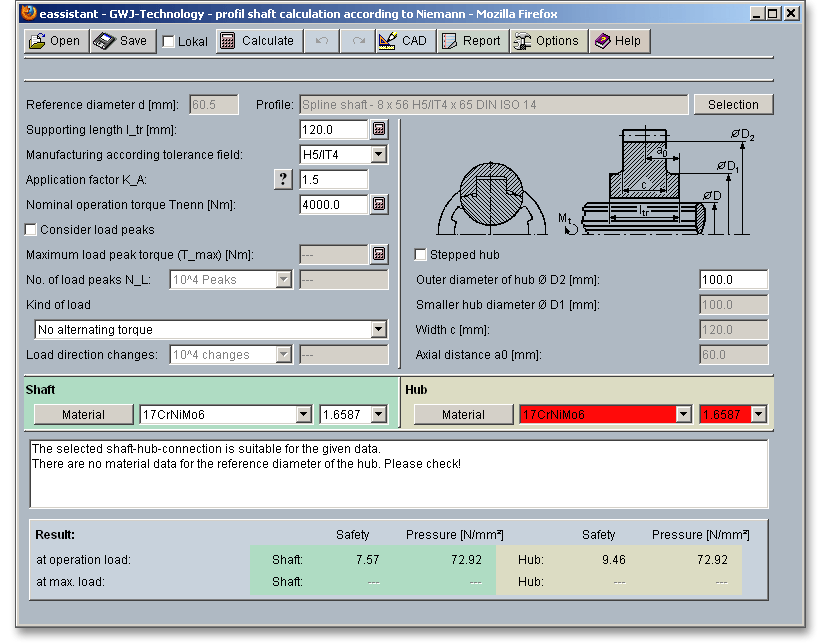
Please login with your user name and your password. Select the module ‘Splined shaft’ through the tree structure of the project manager by double-clicking on the module or clicking on the button ‘New calculation’.
A splined shaft connection with a splined shaft according to DIN ISO 14 is given. The safety against pressure is required. For our calculation example the following input values are given:
Diameter  | = 32 mm |
Diameter  | = 38 mm |
| Number of keys | = 8 |
| Key width | = 6 |
Supporting length  | = 40 mm |
| Manufacturing according to tolerance field | = H7/IT7 |
| Application factor | = 1 |
Nominal operation torque  | = 2400 Nm |
Maximum load peak torque  | = 2400 Nm with number of load peaks 
|
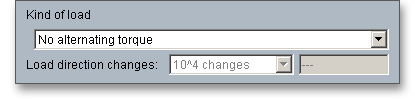
| No alternating torque |
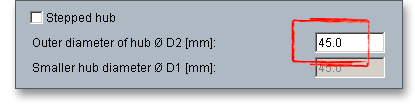
Outer diameter of hub  | = 45 mm |
| Material shaft | = C45 hardened and tempered |
| Material hub | = C45 hardened and tempered |
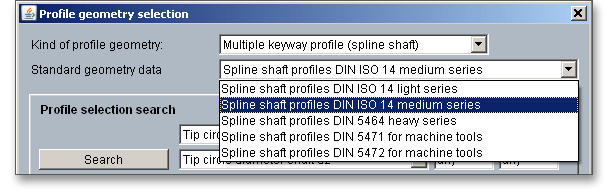
In order to find the right profile, click the button ‘Selection’.
Select from the listbox ‘Standard geometry data’ the splined shaft profile according to DIN ISO 14 medium series.
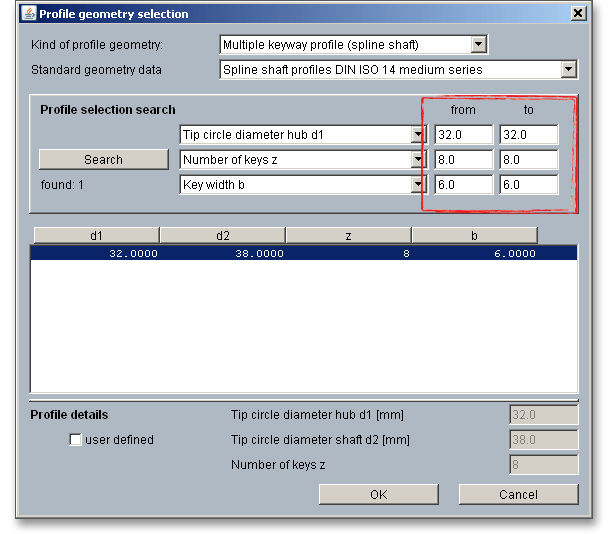
You can narrow your search by entering certain parameters in order to find the right profile quicker. Just add the
diameter  , the number of keys as well the key width. Click on the button ‘Search’.
After clicking the button ‘Search’, only one profile remains. Please select the profile and click the button ‘OK’.
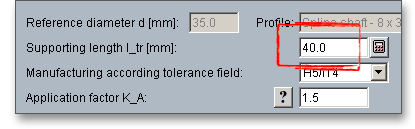
Enter ‘40 mm’ for the supporting length  .
.
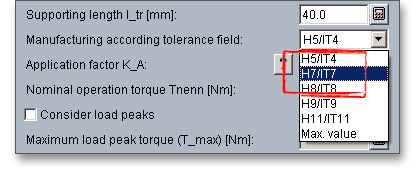
Click the listbox in order to choose the tolerance field ‘H7/IT7’.
The field ‘Profile’ displays the previously selected tolerance field.
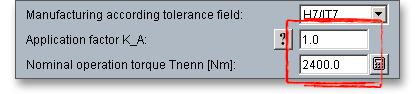
Please add the application factor as well as the nominal operation factor  .
.
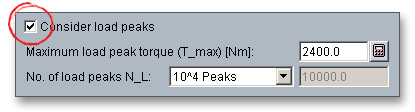
Activate the load peaks und enter ‘2400’ for the maximum load peak torque  .
.
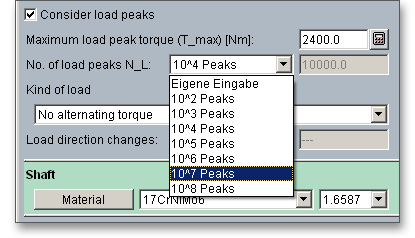
Select the number of load peaks from the listbox.
There is no change in load direction, so enter the default setting ‘No alternating torque’ for the ‘kind of load’.
Enter the value ‘45 mm’ for the outer diameter of the hub.
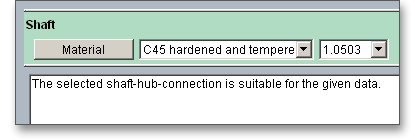
Select the material ‘C45 hardened and tempered’ for the shaft.
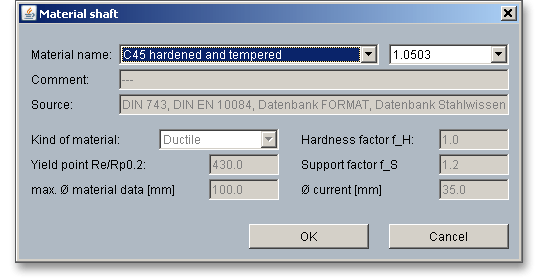
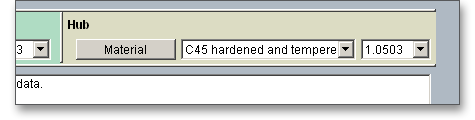
Note: In case you need further information on the material, click on the button ‘Material’.
Select the hub material ‘C45 hardened and tempered’ from the listbox.
All results (safeties at operation load and maximum load, the pressures for shaft and hub) will be calculated during every input and will be displayed in the result panel. A recalculation occurs after every data input. Any changes that are made to the user interface take effect immediately.
For our calculation example the splined shaft is sufficiently dimensioned. In addition, the message window contains the hint that this shaft-hub-connection is suitable and can be used.
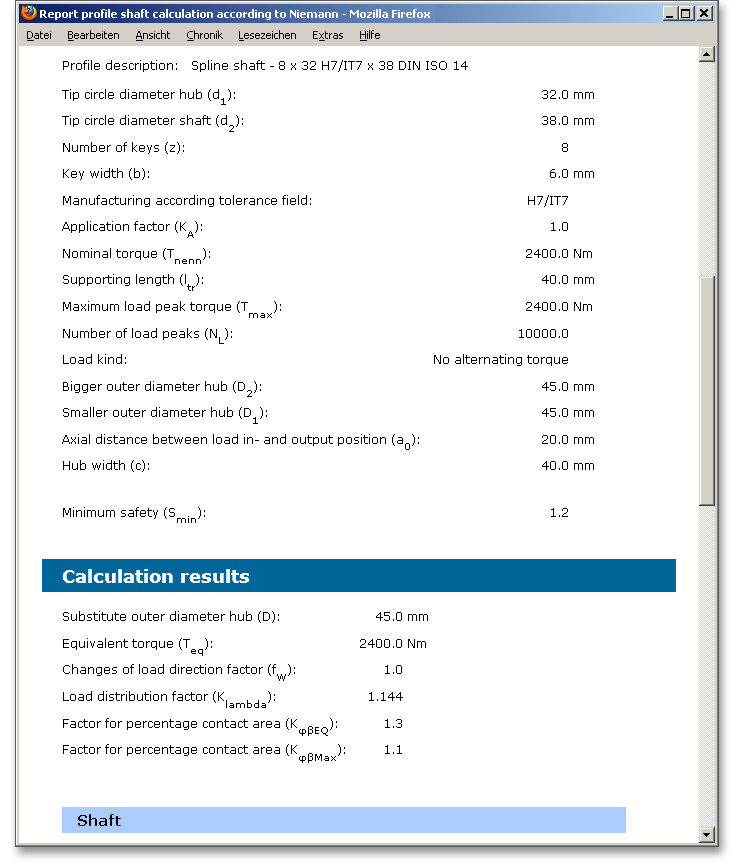
After the completion of your calculation, you can create a calculation report. Click on the ‘Report’ button. You can navigate through the report via the table of contents that provides links to the input values, results and figures. This calculation report contains all input data, the calculation method as well as all detailed results. The report is available in HTML and PDF format. The calculation report saved in HTML format, can be opened in a web browser or in Word for Windows.
You may also print or save the calculation report:
 ‘Save as’ from your browser menu
bar. Select the file type ‘Webpage complete’, then just click on the button ‘Save’.
‘Save as’ from your browser menu
bar. Select the file type ‘Webpage complete’, then just click on the button ‘Save’.
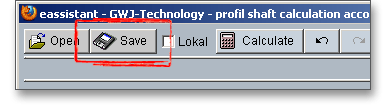
When the calculation is finished, you can save it to your computer or to the eAssistant server. Click on the button ‘Save’.
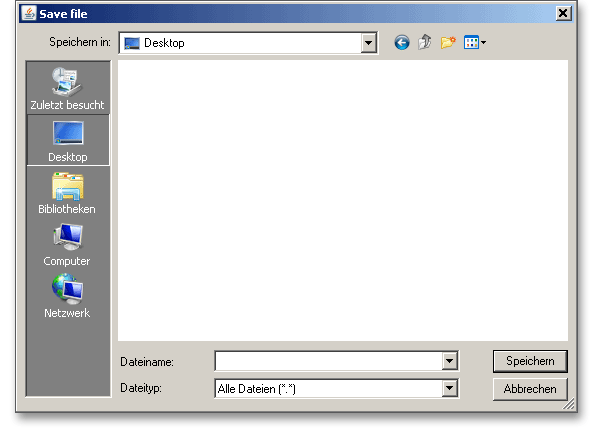
Before you can save the calculation to your computer, you need to activate the checkbox ‘Enable save data local’ in the project manager and the option ‘Local’ in the calculation module. A standard Windows dialog for saving files will appear. Now you will be able to save the calculation to your computer.
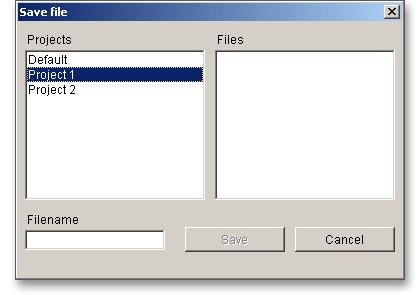
In case you do not activate the option in order to save your files locally, then a new window is opened and you can save the calculation to the eAssistant server. Please enter a name into the input field ‘Filename’ and click on the button ‘Save’. Then click on the button ‘Refresh’ in the project manager. Your saved calculation file is displayed in the window ‘Files’.
Our manual is improved continually. Of course we are always interested in your opinion, so we would like to know what you think. We appreciate your feedback and we are looking for ideas, suggestions or criticism. If you have anything to say or if you have any questions, please let us know via phone +49 (0) 531 129 399-0 or email eAssistant@gwj.de.